
IN7 OTP Not Received? Common Reasons and Checks
If your IN7 APK OTP is not received, avoid requesting code after code straight away. The problem may come from the mobile number, network signal, SMS filtering, repeated requests, or a delay on the service side. An OTP, or one-time password, is normally used to confirm that you control the mobile number linked with an account. IN7-related registration and login pages commonly mention mobile verification, so losing access to the registered number or failing to receive SMS can stop login, registration, or password recovery.
A useful approach is to check the phone and account details in a simple order.
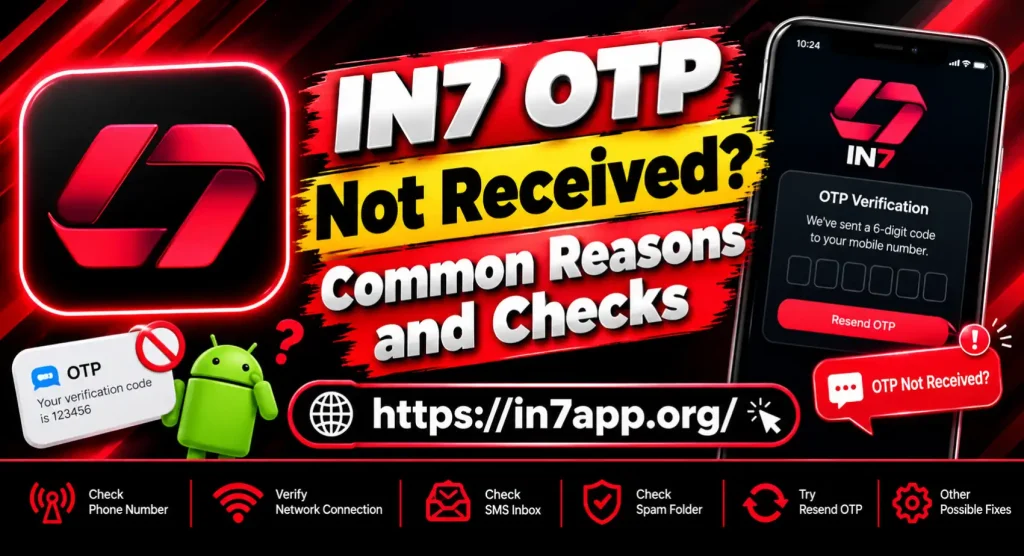
Check the Mobile Number First
Start with the number entered on the IN7 screen.
Make sure:
- every digit is correct;
- the correct country code is used if requested;
- there are no extra spaces;
- the SIM is active;
- you still have access to the number registered with the account.
A single incorrect digit can send the OTP to another number or prevent the request from being processed.
If you have changed your phone number since creating the account, repeatedly requesting codes on the new number may not help if the old number is still linked to the profile.
Check Your Mobile Signal
OTP messages depend on SMS delivery, so poor signal can cause delays.
Google’s Messages troubleshooting guidance recommends confirming that the phone has signal and that airplane mode is turned off when SMS messages are not arriving.
Check whether you can receive a normal text message from another person.
If other SMS messages are also failing, the issue is likely with the phone or mobile network rather than IN7 alone.
Try moving to an area with stronger signal before requesting another code.
Turn Airplane Mode Off
It sounds simple, but this is easy to miss.
If airplane mode is enabled, the phone may not receive normal mobile SMS messages.
Turn it off and wait until your network signal appears again.
You can also briefly switch airplane mode on and then off to force the phone to reconnect to the mobile network.
After the signal returns, request one fresh OTP rather than several.
Do Not Request Too Many OTPs
Repeated requests can create more confusion instead of solving the problem.
Verification systems may limit how many codes can be requested within a certain period. Google’s own account guidance notes that repeated verification requests can hit request limits, while only the newest verification code may remain valid.
If you already requested several codes:
- stop requesting new ones;
- wait for the most recent SMS;
- use only the newest valid OTP.
Older codes may no longer work even if they arrive later.
Check Spam and Blocked Messages
Automated verification texts may come from a short code, sender ID or unfamiliar number.
Open your SMS app and check:
- Spam;
- Blocked;
- Archived messages;
- Message filtering settings.
Google recommends checking whether a sender or short code has been blocked when SMS messages are not arriving properly.
Do not disable all spam protection permanently. Just check whether the verification message has been filtered incorrectly.
Check Whether Short-Code SMS Is Blocked
Some services send verification messages through short-code numbers.
Mobile carriers can sometimes block certain automated messages.
Google notes that carrier support for SMS and short codes can affect verification delivery and recommends contacting the mobile provider when these messages are being blocked.
If ordinary SMS works but verification codes from multiple services do not, ask your carrier whether automated or short-code SMS is restricted on your number.
Restart the Phone
A restart can restore a stuck mobile connection or messaging process.
Turn the phone off, wait briefly and start it again.
After the network reconnects, open the IN7 login or registration page and request one OTP.
Do not immediately repeat the request if the message takes a few seconds to arrive.
Check the SIM Card
If your phone uses a physical SIM, confirm that it is working correctly.
Google’s Messages guidance recommends checking that the SIM is properly inserted when sending or receiving SMS fails.
If you use a dual-SIM phone, also check which number you entered for the IN7 account.
People sometimes request an OTP on one number while watching messages on the other SIM.
Check Whether the IN7 Service Is Having a Problem
If your mobile signal is good and other SMS messages arrive normally, the problem may be on the service side.
Possible signs include:
- OTP button not responding;
- error after requesting the code;
- registration page repeatedly refreshing;
- several users reporting similar login problems;
- the login page failing to load properly.
In that situation, changing your SIM settings repeatedly is unlikely to help.
Wait for the current request to expire and try again later through the same verified IN7 service.
Make Sure You Are on the Correct IN7 Page
This is especially important because multiple websites and apps use IN7 branding.
If a page does not recognise your registered mobile number, check whether it is the same service where you created the account.
Do not enter an OTP into another website simply because it contains “IN7” in the name.
A similar logo does not prove that the account systems are connected.
Never Share an IN7 OTP
An OTP is meant to verify your access.
Do not send it to:
- WhatsApp support contacts;
- Telegram admins;
- referral agents;
- unknown callers;
- people offering account recovery.
Google’s own security guidance strongly warns users not to share verification codes because scammers can use them to take over accounts.
The safest place to enter an OTP is the exact login, registration, or recovery screen that requested it.
What If You Lost Access to the Registered Number?
If the old SIM is no longer available, repeated OTP requests will not solve the problem.
Use the account-recovery process provided by the same IN7 Gaming service.
You may need to verify ownership using another method if the platform supports one.
Do not involve the new holder of an old number in verification and do not ask them to forward OTP messages.
Frequently Asked Questions
Why am I not receiving my IN7 OTP?
Possible reasons include an incorrect number, weak signal, blocked SMS, short-code restrictions, repeated requests or a temporary problem with the service.
Should I keep requesting new OTPs?
No. Repeated requests can invalidate older codes and may trigger request limits. Use the newest valid OTP only.
Why does the OTP arrive late?
SMS delivery can be delayed by network congestion, weak signal or carrier problems. Google notes that delivery speed can vary by network and location.
Can blocked messages stop an IN7 OTP?
Yes. Check your SMS spam and blocked lists, especially if automated messages from unfamiliar senders are being filtered.
Should I share my OTP with IN7 support?
No. Do not give an OTP to another person. Enter it only into the verification screen that requested it.
What if my registered SIM is lost?
Use the platform’s account-recovery method. Do not rely on someone else receiving or forwarding the OTP.
What if normal SMS works but IN7 OTP does not?
The problem may be with the particular service, sender or short-code delivery rather than your phone.
Final Thoughts IN7 OTP Not Received
If IN7 OTP is not received, start with the mobile number, signal and SMS settings. Avoid requesting codes repeatedly because only the latest code may work, and verification systems can apply request limits. Check blocked messages, confirm your SIM can receive SMS, and make sure you are using the correct IN7 service. Most importantly, keep the OTP private. If the OTP arrives but account access still fails, continue with the IN7 Login Not Working guide. If the entire app is failing to load, use the IN7 App Not Working page.


2 Comments