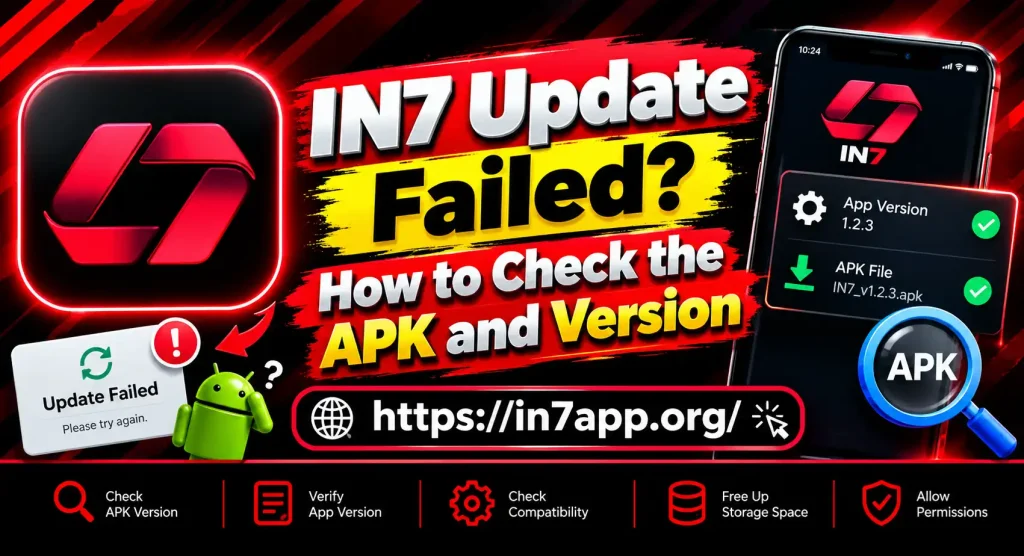
IN7 Update Failed? How to Check the APK and Version
If an IN7 update failed on your Android phone, repeatedly downloading another APK is usually not the best first step. The failure may come from low storage, an incompatible Android version, a damaged file, a package conflict, or a different app signature. The IN7 APK name also appears on more than one app and website, so an APK described as the “latest IN7 version” may not actually be an update for the app already installed on your phone.
Start by checking the existing app and the replacement file before changing anything.
Check Your Current IN7 Version First
Before installing an update, find out which version is already installed.
On many Android phones, open:
Settings → Apps → IN7 → App Info
The menu may look slightly different depending on your phone brand.
Check the:
- app version;
- package information;
- developer, if shown;
- current permissions.
Write down the version number before downloading another file.
A higher-looking version number does not automatically prove that the APK belongs to the same IN7 app.
Why Can an IN7 Update Fail?
Android performs several checks when an existing app is updated.
An update can fail when:
- there is not enough free storage;
- the APK download is incomplete;
- the new file requires a newer Android version;
- the package name does not match;
- the signing certificate is different;
- the installed build is newer than the downloaded file;
- the APK has been modified;
- device security blocks the file.
Understanding which of these applies is more useful than forcing the installation.
Check Available Storage
An update needs more free space than the displayed APK file size in some cases because Android must download, unpack and install the new files. Google recommends checking storage when Android apps cannot download, install or work properly. Open your phone’s storage settings and remove unnecessary downloads or unused apps if space is very low. After freeing space, restart the phone before retrying the same verified update.
Make Sure the APK Download Finished Properly
A weak connection can leave you with a partial or corrupted APK.
Delete the incomplete file if:
- the download stopped unexpectedly;
- the file size looks unusually small;
- Android says the package is invalid;
- the installation immediately fails.
Download the file again only after confirming the source.
Do not collect several IN7 Download APKs from different websites and test them one by one. You may end up installing a completely different IN7-branded product.
Check Android Compatibility
A newer app version may require a newer Android release. Google recommends checking both Android system updates and app updates when troubleshooting an app that will not work correctly. Check your Android version under your device’s About Phone or Software Information section.
If the IN7 update source lists a minimum Android requirement, compare it with your device before installing.
An incompatible APK cannot be fixed by repeatedly tapping Install.
Look for a Package or App Conflict
Android identifies an app using more than its visible name.
Two apps can both be called IN7 but use different package identities.
If the APK you downloaded belongs to another package, Android may:
- install it as a separate app;
- refuse to update the existing app;
- show an “App not installed” error.
That is why package and developer information matter more than the IN7 logo alone. Before removing your current app, confirm that the replacement APK actually belongs to the same product.
App Signature Mismatch
Android apps are normally signed by their developer.
An update generally needs to match the signing identity of the installed version. If the new APK is signed differently, Android may reject it.
This can happen when:
- the file comes from another developer;
- the APK has been modified;
- a third-party site repackaged the application;
- you downloaded another IN7-branded app.
A signature conflict is a reason to investigate the APK, not a reason to bypass Android security.
Do Not Downgrade by Accident
Sometimes users search for a new IN7 APK and unknowingly download an older build.
Android may block an attempted downgrade.
Check:
- installed version;
- downloaded version;
- update date;
- package name.
If you intentionally want an older build, use the separate IN7 Old Version guide because downgrading has different risks from updating.
Restart the Phone Before Trying Again
Restarting Android can clear temporary installer or app-process problems. Google recommends restarting the phone as an early troubleshooting step and checking the result after each change. After restarting, use the same verified APK first rather than immediately downloading another copy.
Check Play Protect Warnings
Google Play Protect scans apps from Google Play and also checks apps installed from other sources. It can warn about potentially harmful apps and may block certain unverified applications that request sensitive permissions.
Do not permanently disable Play Protect just because an IN7 update will not install.
Instead, check:
- who provided the APK;
- requested permissions;
- package name;
- whether the file was modified;
- whether it matches your existing app.
A security warning is information worth investigating.
Clear Cache if the Installed IN7 App Is Misbehaving
Sometimes the update installs but the app does not work correctly afterward. Google lists clearing app cache and, when necessary, app data among standard troubleshooting options for installed apps that crash, freeze, or fail to respond.
Start with cache only.
Clearing all app data can remove saved settings and login information, so make sure you know your registered mobile number and recovery details before using that option.
Should You Uninstall IN7 Before Updating?
Usually, no.
Uninstalling should come later because it can remove locally stored data and may leave you without a working app if the replacement APK turns out to be wrong.
Before uninstalling, record:
- login details;
- registered mobile number;
- current version;
- package name;
- recovery method.
If your current version still opens, keeping it installed while you verify the new APK is often safer.
Avoid Fake Update Files
Be cautious with updates labelled:
- IN7 hack latest version;
- unlimited money update;
- guaranteed win APK;
- withdrawal unlock;
- mod update;
- premium cracked version.
These are not normal update descriptions.
Modified files can introduce security risks, account problems or signature conflicts. No genuine update can guarantee game winnings.
Frequently Asked Questions
Why did my IN7 update fail?
Common causes include low storage, corrupted APK files, Android incompatibility, package conflicts, signature mismatches or downloading an older version.
Should I uninstall the old IN7 version first?
Not as the first step. Check the package, version and source before removing a working installation.
Why does Android say “App not installed”?
The APK may be damaged, incompatible, signed differently or belong to another package.
Can low storage stop an IN7 update?
Yes. Android needs enough space to process and install an update.
Should I disable Play Protect to update IN7?
It is better to investigate the warning and verify the APK. Google recommends keeping Play Protect enabled for security.
Can I update IN7 using any website?
No. Similar IN7 names can belong to different apps. Use a source that matches the app you already have.
What if the update installs but IN7 crashes?
Restart the device, check Android updates and try clearing the app cache. If only IN7 remains affected, the specific app build may have a problem.
Final Thoughts IN7 Update Failed
If an IN7 update failed, focus on matching the correct app before forcing another installation. Check storage, Android compatibility, version number, package identity, and APK source. A different signature or package may indicate that the file is not a genuine update for your installed app. Keep Play Protect and other normal Android security features enabled while investigating the issue. If you specifically need a previous build, use the IN7 Old Version guide. If the update succeeds but the app will not load, continue to the IN7 App Not Working page.